
Projects
A project is the central organising unit in FlowUrja Studio. It groups a turbine model, simulation input files, generated wind fields, and results under a single working directory on disk. Everything the app does — running TurbSim, launching OpenFAST, saving module settings — writes into that directory.
The welcome screen
Section titled “The welcome screen”When FlowUrja Studio launches with no open project, the welcome screen is shown.
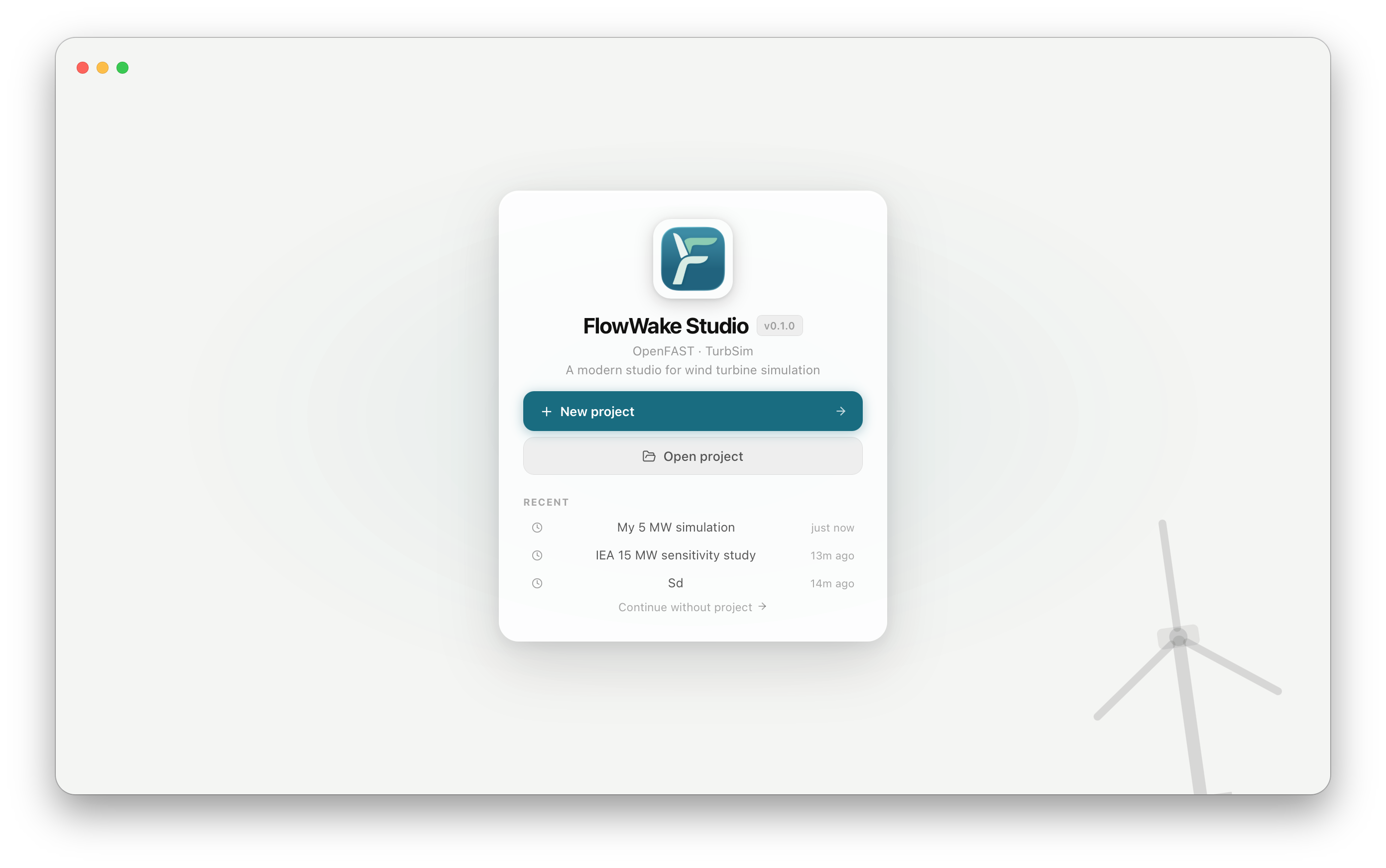
| Control | Action |
|---|---|
| + New project | Create a new project in a chosen directory |
| Open project | Open an existing project folder |
| Recent | Re-open a recently used project directly |
| Continue without project → | Use the app without a project (limited functionality — module editors and batch tools require a project) |
Creating a project
Section titled “Creating a project”- Click + New project.
- In the dialog, choose or create an empty folder on your file system. This becomes the working directory.
- Give the project a name.
- Select a turbine model from the dropdown (see Models below).
FlowUrja Studio copies all required OpenFAST and TurbSim input files for the selected turbine into the working directory under a model/ subfolder. The project state is saved as <project-name>.fus at the root of the working directory.
Opening an existing project
Section titled “Opening an existing project”Click Open project and navigate to any folder that contains a .fus file. FlowUrja Studio restores the project name, turbine model, module settings, and the list of recent simulation runs.
The sidebar
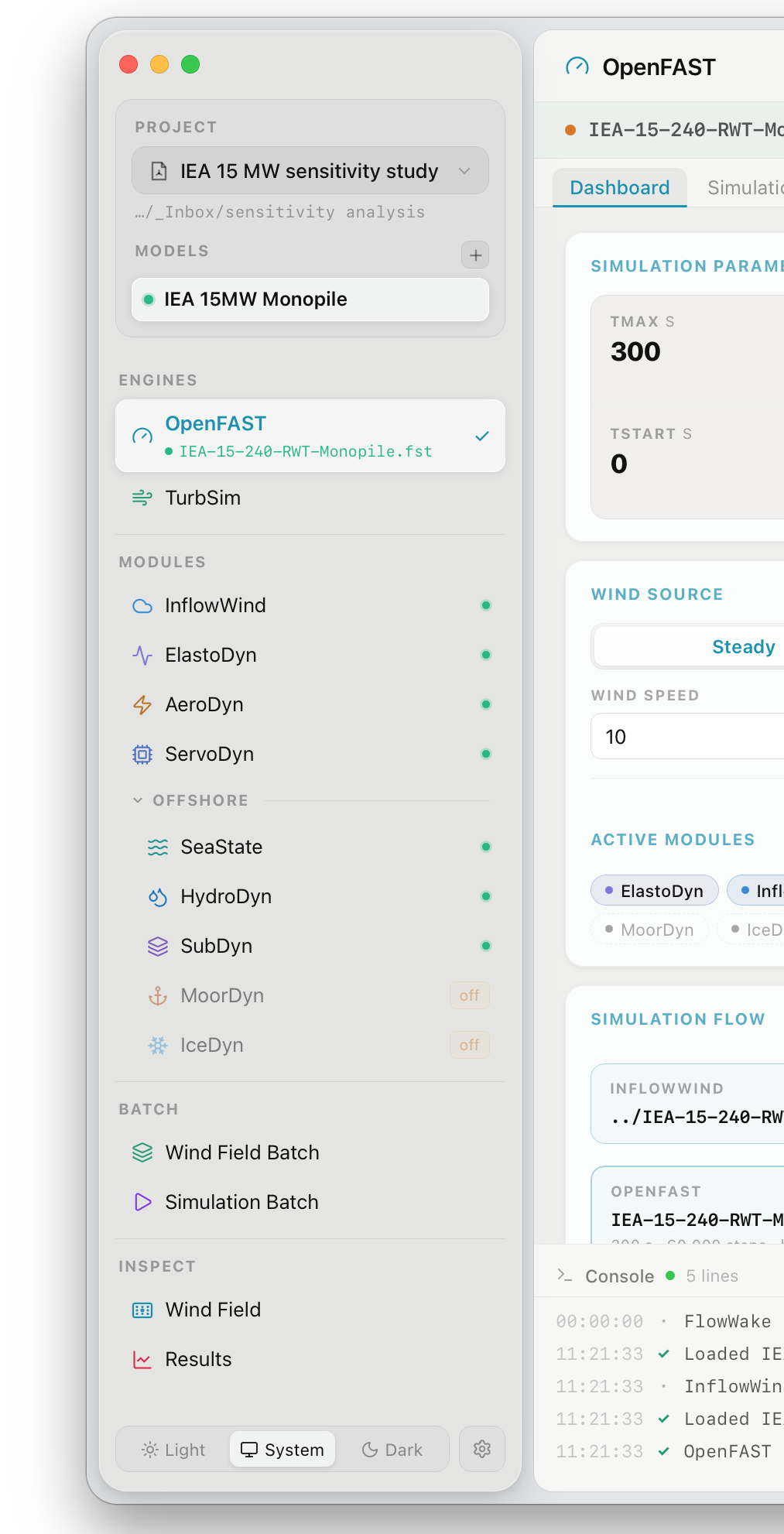
Section titled “The sidebar”Once a project is open, the sidebar provides access to all tools organised into five sections.
PROJECT
Section titled “PROJECT”Shows the active project name and its working directory path. Click the project name to switch to a different project.
MODELS
Section titled “MODELS”Lists the turbine models associated with the project. A project can have multiple models — for example, comparing IEA 15MW Monopile and UMaine Semi configurations in the same working directory. Click + to add another model.
ENGINES
Section titled “ENGINES”- OpenFAST — the aeroelastic simulation engine. The active
.fstfile is shown beneath the label. Click to open the OpenFAST panel. - TurbSim — the turbulent wind field generator. Click to open the Wind Field panel.
MODULES
Section titled “MODULES”Lists the OpenFAST sub-modules enabled for the active model. Each module name is a shortcut to its editor panel. The coloured dot indicates status:
| Colour | Meaning |
|---|---|
| Green | Module is enabled and configured |
| Orange | Module is enabled but has unsaved changes or a warning |
| (none) | Module is disabled in the .fst file |
The OFFSHORE group (SeaState, HydroDyn, SubDyn, MoorDyn, IceDyn) is collapsed by default and expands when any offshore module is enabled.
- Wind Field Batch — parametric TurbSim sweeps. See Wind Field Batch.
- Simulation Batch — multi-case OpenFAST runs. See Simulation Batch.
INSPECT
Section titled “INSPECT”- Wind Field — visualise a generated
.btsbinary wind file. - Results — load and analyse OpenFAST
.outboutput files.
Working directory structure
Section titled “Working directory structure”After creating a project and running a simulation, the working directory follows this layout:
my-project/├── my-project.fus ← project state (name, model selection, settings)├── model/│ └── IEA-15-240-RWT-Monopile/│ ├── IEA-15-240-RWT-Monopile.fst│ ├── IEA-15-240-RWT_InflowFile.dat│ ├── IEA-15-240-RWT_ElastoDyn.dat│ └── ... ← all OpenFAST sub-module files├── wind/│ └── ws12_A_IECKAI_s01.bts ← generated TurbSim wind fields└── results/ ├── ws12_r001/ │ ├── outb/ │ │ └── ws12_r001.outb ← OpenFAST binary output │ └── inp/ │ └── ... ← snapshot of input files used └── batch_sweep_01/ └── ...The model/ files are the live input files edited by the module panels. The results/ folder is where batch and single runs write their output.
Models
Section titled “Models”FlowUrja Studio ships with the following reference turbines:
| Model | Rating | Configuration |
|---|---|---|
| NREL 5MW | 5 MW | Onshore / fixed-bottom |
| IEA 10MW | 10 MW | Onshore / fixed-bottom |
| IEA 15MW Monopile | 15 MW | Offshore · fixed-bottom |
| IEA 15MW UMaine Semi | 15 MW | Offshore · floating |
| IEA 15MW OLAF | 15 MW | Fixed-bottom · free-wake aerodynamics |
| IEA 22MW Monopile | 22 MW | Offshore · fixed-bottom |
| IEA 22MW Semi | 22 MW | Offshore · floating |
Custom turbines can be added by placing OpenFAST input files in a subfolder of model/ and opening the project — FlowUrja Studio will detect and list the .fst file automatically.