
Simulation Batch
The Simulation Batch panel prepares and executes multiple OpenFAST cases in parallel. It is typically used after a Wind Field Batch to run the full load matrix. Click Simulation Batch under BATCH in the sidebar to open it.
The panel has three tabs: Define, Run, and Results.
Define tab
Section titled “Define tab”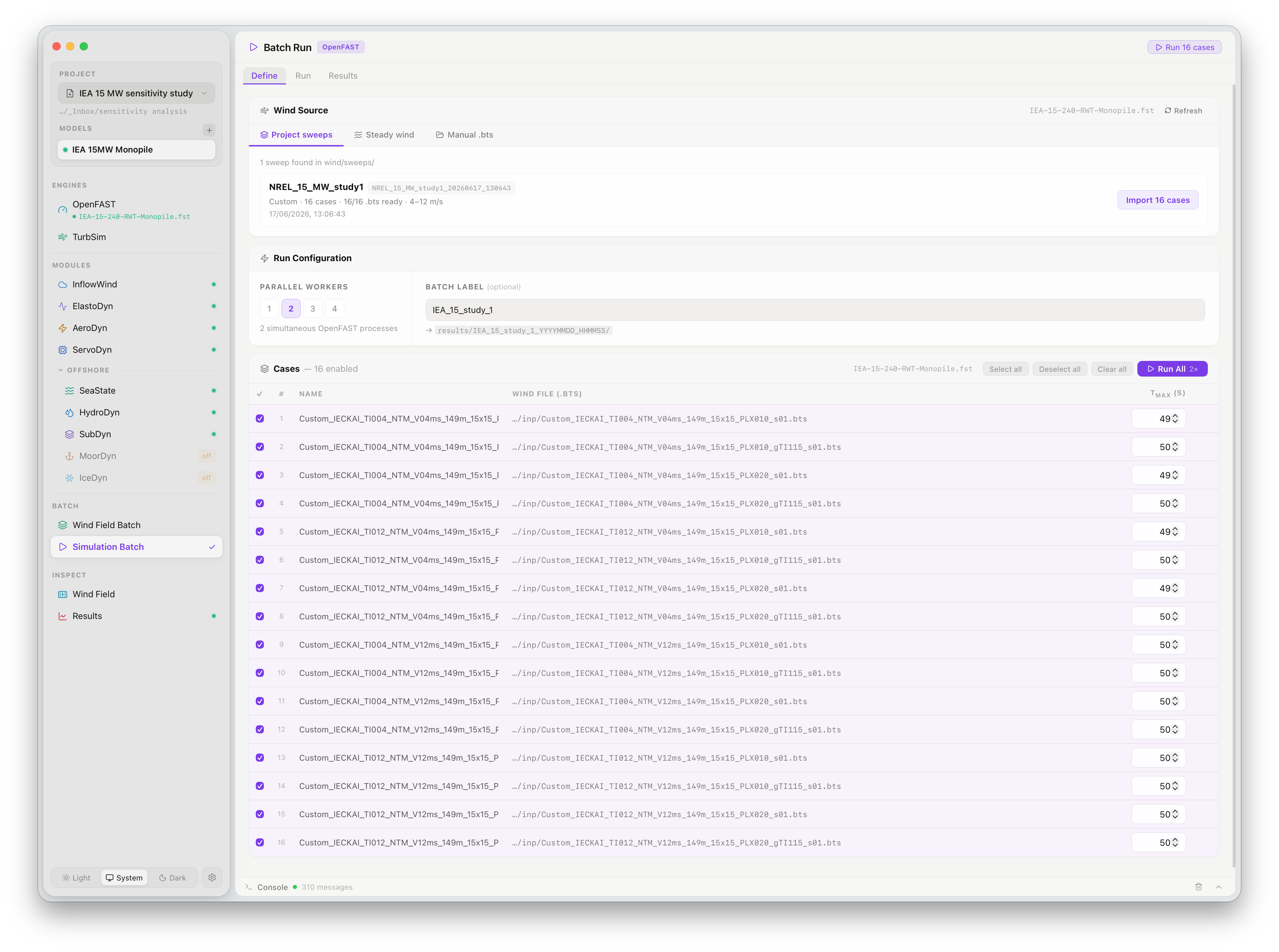
Wind source
Section titled “Wind source”Cases can be imported from three sources:
| Source | Description |
|---|---|
| Project sweeps | Import cases from a completed Wind Field Batch sweep in the current project. FlowUrja Studio reads the sweep manifest and creates one simulation case per .bts file |
| Display wind | Use a single manually selected wind field with a set of run configurations |
| Manual .bts | Point to individual .bts files from anywhere on the file system |
The Project sweeps tab lists all completed sweep directories in the project. Select a sweep and click Import N cases to populate the case table.
Run configuration
Section titled “Run configuration”| Setting | Description |
|---|---|
| Parallel workers | Number of OpenFAST processes to run simultaneously. Default is 2; the optimal value depends on available CPU cores and RAM per simulation |
| Batch label | Short identifier for this batch run, used to organise output in the results/ directory |
The OpenFAST binary path is shown below the batch label and can be changed in Settings if a custom binary is needed instead of the bundled one.
Cases table
Section titled “Cases table”The cases table lists every simulation case with three columns:
| Column | Description |
|---|---|
| Name | Auto-generated from the wind field filename, encoding all wind parameters |
| OpenFAST .fst | The primary input file used for this case. Defaults to the active model’s .fst |
| TMax (s) | Simulation duration. FlowUrja Studio calculates TMax automatically from the usable time of the corresponding .bts file |
Use the checkboxes to select a subset of cases. Select all, Deselect all, and Clear buttons are available above the table. Click Run All (or Run selected) to proceed to the Run tab.
Run tab
Section titled “Run tab”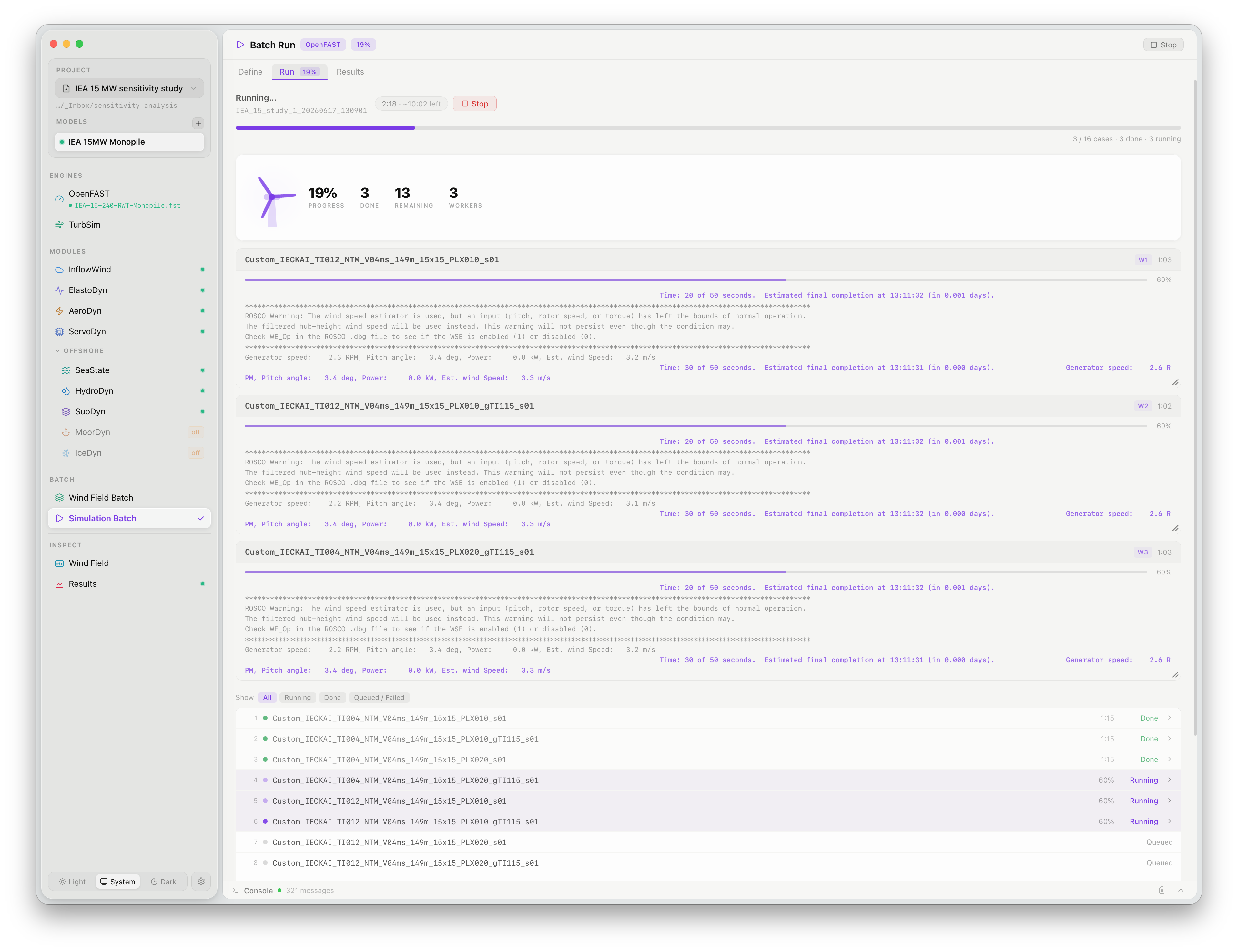
Progress overview
Section titled “Progress overview”The top of the Run tab shows four live counters:
| Counter | Description |
|---|---|
| % | Overall batch completion percentage |
| First number | Cases completed |
| Second number | Cases currently running |
| Third number | Cases queued |
A progress bar spans the full width beneath the counters.
Per-case cards
Section titled “Per-case cards”Each active case is shown as an expandable card displaying the case name and a live console stream from the OpenFAST process:
Time: 40 of 80 seconds, Estimated final completion at 12:31:11 (in 0.680 mins)Generator speed: 7.3 RPM, Pitch angle: 0.0 deg, Wind speed: 11.4 m/sCompleted cases show a Done badge. Running cases show a Running badge with the live console. Queued cases are listed below the active cards waiting for a worker to become free.
Stopping and resuming
Section titled “Stopping and resuming”Click Stop at any time to halt all running processes cleanly. Completed cases are preserved. To resume, relaunch the batch from the Define tab — FlowUrja Studio detects already-completed output files and skips them automatically.
Results tab
Section titled “Results tab”The Results tab provides a quick summary of the completed batch: total cases, completion rate, and a list of output files. Click any row to open the corresponding .outb file directly in the Results viewer.
For cross-case analysis, use Scan folder in the Results panel and point it to the batch output directory — all cases will be found and can be loaded together for comparison.
Output structure
Section titled “Output structure”Each simulation case writes its output to a dedicated folder under results/:
results/└── {batch_label}_{timestamp}/ ├── manifest.json ← case list and parameters └── {case_name}/ ├── outb/ │ └── {case_name}.outb ← OpenFAST binary output └── inp/ ├── {case_name}.fst ← snapshot of .fst used ├── {case_name}_InflowFile.dat ← InflowWind input └── ... ← all sub-module filesThe inp/ snapshot captures the exact input files used for each case, ensuring reproducibility of every result in the batch.